
 Fast Quote
Log in
Sign Up
Don't have an account? Sign Up
Already have an account? Log in




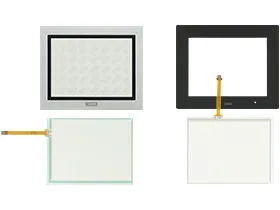
 Brand New In Stock
 Ships Today
 12 Months Kernfix Warranty
 Urgent Worldwide Shipping
Easy Installation and Operation: Designed for straightforward installation and operation, reducing maintenance costs.
Outstanding Performance: High-quality materials and technology ensure superior performance and reliability.
Wide Applicability: Suitable for various industrial environments and applications, meeting the needs of different industries.
Enhanced Productivity: Enhanced touchscreen functionality provides faster response times, aiding in increased productivity.
Durability: Built for industrial environments with excellent durability and impact resistance.
To calibrate the IDEC HMI HG2G 5.7-inch Enhanced series touchscreen, you can follow these steps:
1. Open the HMI interface.
2. Navigate to the "Settings" or "Calibration" menu.
3. Follow the on-screen instructions to tap or press on the calibration points, typically located at the four corners and center of the screen.
4. The system will automatically recognize your input and perform the calibration.
5. Check the calibration results to ensure that touch input is accurate.
If you encounter any issues during the calibration process, consult your device manual or reach out to our technical support team for assistance.
 Fast Quote
 Worldwide Shipping
 12 Months Warranty
 Customize Service