


Grideal.com-Leading global industrial mall.
Quick Service for Full HMI Parts Replacement
Touchscreen-Keypad-Display-Case & More Search 80000 Inventory
user photo
Account
Login
Cart
0
Home / All / Panasonic / Other Panasonic Terminal Repair Kit / Panasonic Toughbook CF-29 CF-30 CF-31 Touch Glass
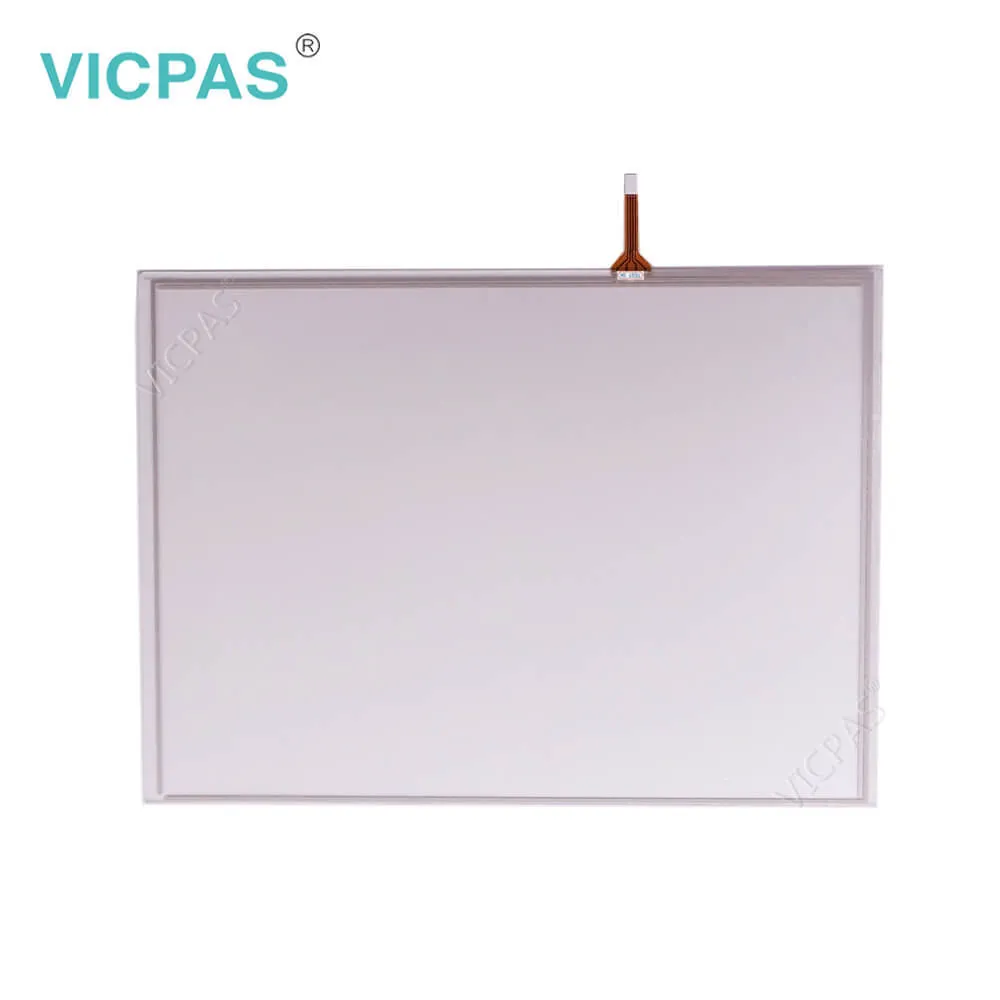
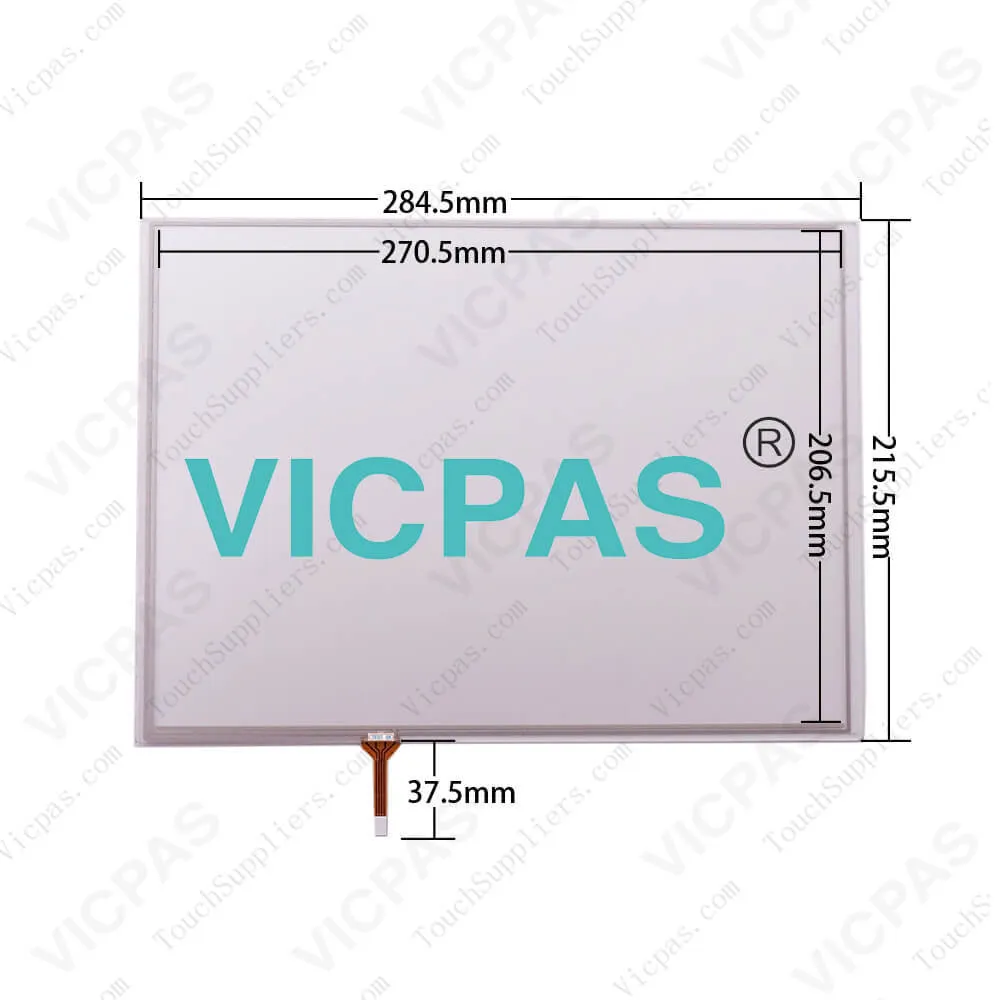
Panasonic Toughbook CF-29 CF-30 CF-31 Touch Glass
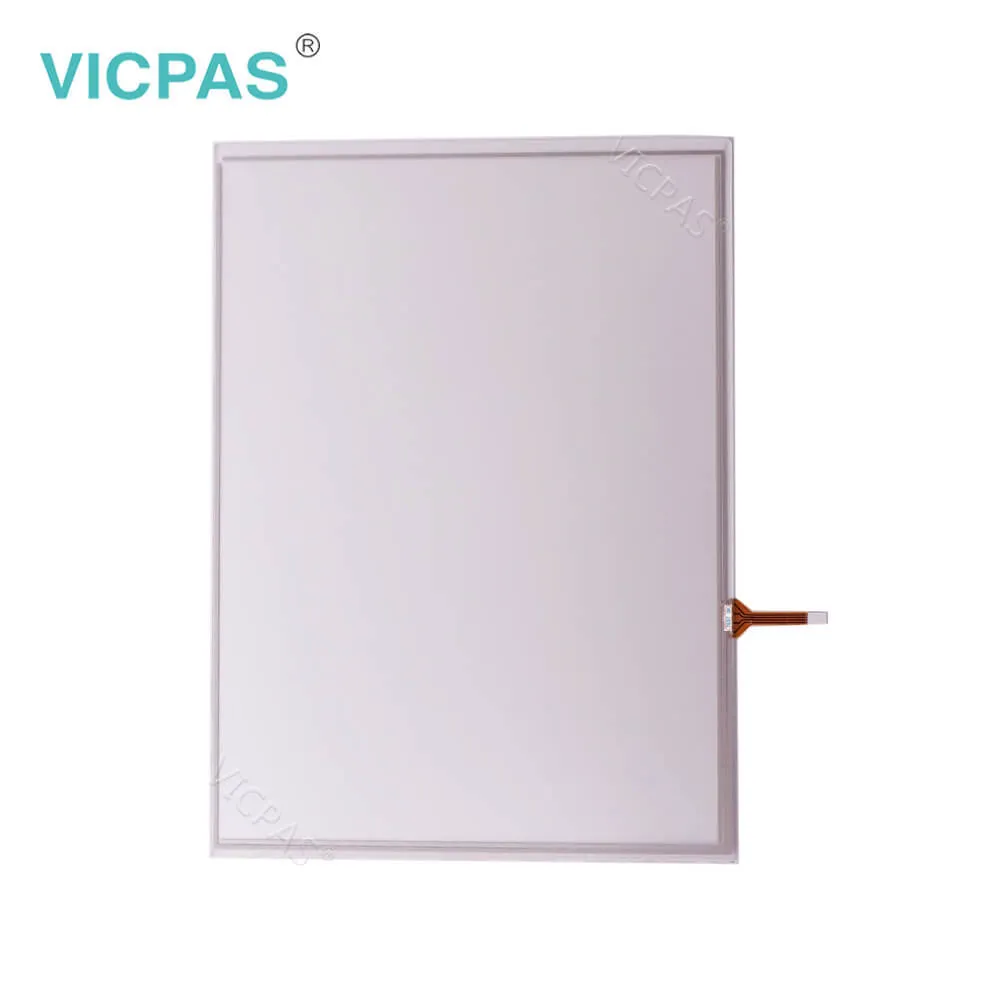
Panasonic Toughbook CF-29 CF-30 CF-31 Touch Glass
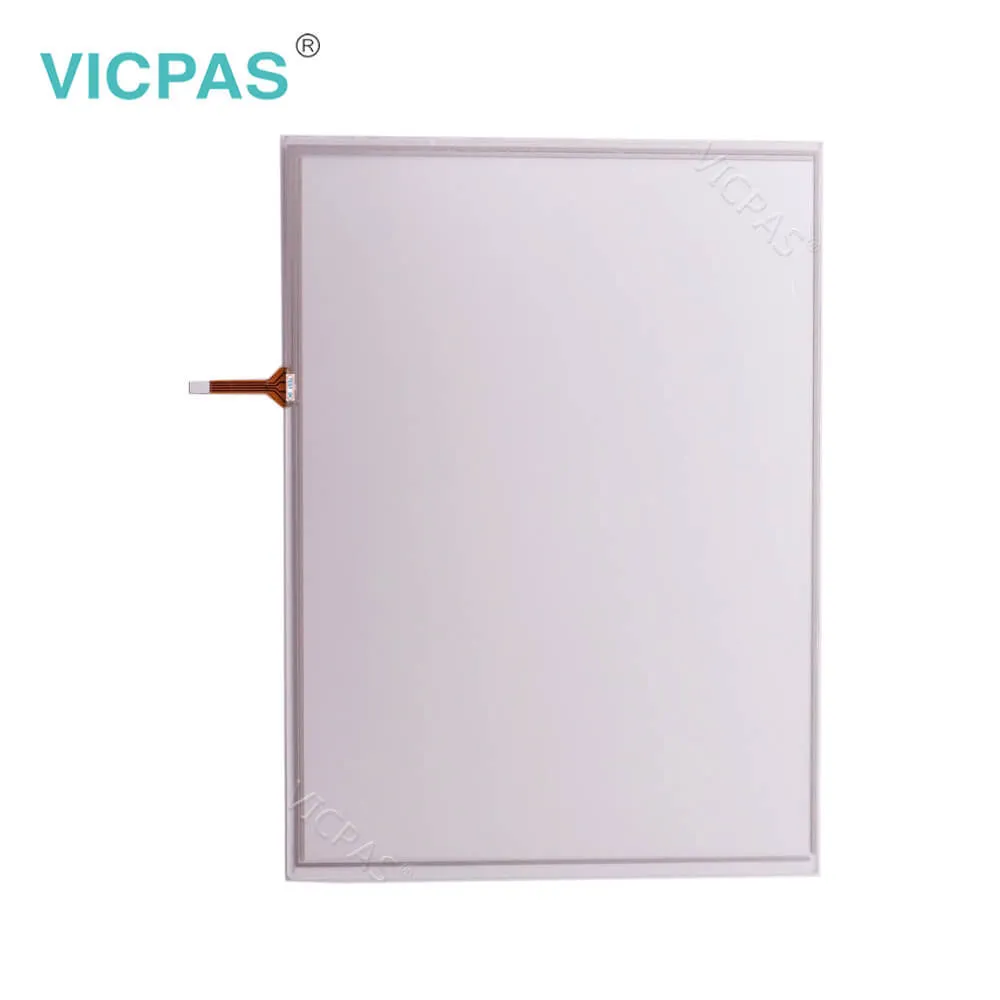
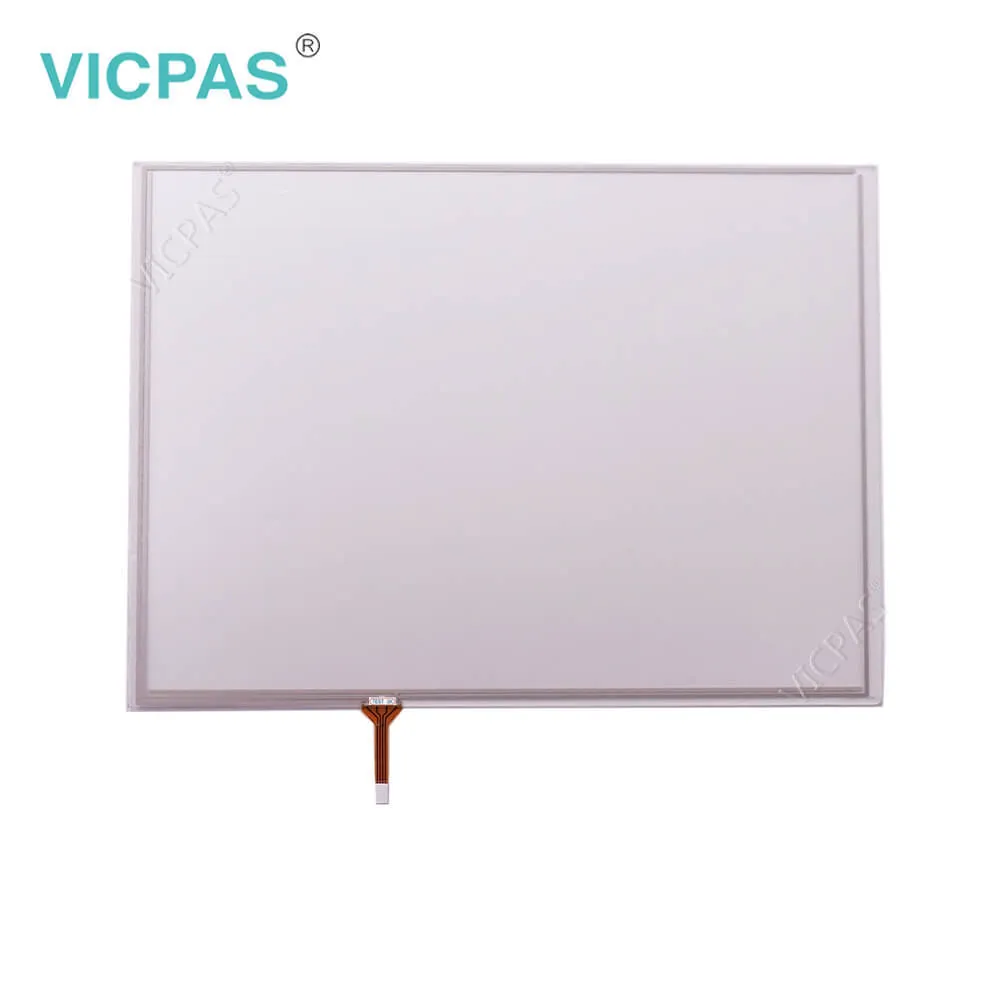
Panasonic Toughbook CF-29 CF-30 CF-31 Touch GlassPanasonic Toughbook CF-29 CF-30 CF-31 Touch GlassPanasonic Toughbook CF-29 CF-30 CF-31 Touch GlassPanasonic Toughbook CF-29 CF-30 CF-31 Touch GlassPanasonic Toughbook CF-29 CF-30 CF-31 Touch Glass
ModelCF-29 CF-30 CF-31
Warranty365 Days
ShippingDHL/FedEx/UPS/TNT/EMS/Aramex /DPEX
FOB portGuangzhou, Shenzhen, Hongkong
Terms of PaymentWestern Union, MoneyGram, T/T, Paypal, PayPal, Credit Card
Download
Update Time2026-02-04 02:27:19
Leading Time{{selectedConditionObj.leading}}
{{item.value}}
{{nameObj.name}}{{nameObj.selectedValue}}
{{valueObj.name}}

Shipping

Free Shipping

Those shipping costs are only estimates, the actual shipping cost will be shown on the order page.

Detail Information

Panasonic Toughbook CF-29 CF-30 CF-31 Touch Panel Glass Replacement


Panasonic Toughbook CF-29 CF-30 CF-31 Touch Screen Repair Replacement

Do Not Turn the Volume Up to Loud When Using CF-29 CF-30 CF-31 Touch Panel Headphones
Listening at high volumes that overstimulate the ear for long periods of time may result in loss of hearing.

Use the Modem with a Regular Telephone Line
Connection to an internal phone line (on-premise switches) of a company or business office, etc. or to a digital public phone or use in a country or area not supported by the computer may result in a fire or electric shocks.

Do Not Connect a Telephone Line, or a Network Cable Other Than the One Specified, into the LAN Port
If the LAN port is connected to a network such as the ones listed below, a fire or electric shock may result.
Networks other than 100BASE-TX or 10BASE-T
Phone lines (Telephone lines, internal phone lines (on-premise switches), digital public phones, etc.)

Do Not Use with Exposing the Skin to the CF-29 CF-30 CF-31 Touch screen panel glass Computer for a Long Period of Time
Using the CF-29 CF-30 CF-31 touch screen monitor computer with exposing the skin to the heat source of the computer or AC adaptor for a long period of time can cause a low-temperature burn.
Do not place the CF-29 CF-30 CF-31 touch screen computer near a television or radio receiver.
Keep the CF-29 CF-30 CF-31 touch screen panel computer away from magnets. Data stored on the hard disk may be lost.
Do not touch the CF-29 CF-30 CF-31 touchscreen terminals on the battery pack. The battery pack may no longer function properly if the contacts are dirty or damaged.
Do not expose the battery pack to water, or allow it to become wet.
If the battery pack will not be used for a long period of time (a month or more), charge or discharge (use) the battery pack until the remaining battery level becomes 30% to 40% and store it in a cool, dry place.
This computer prevents overcharging of the battery by recharging only when the remaining power is less than approx. 95% of capacity.
The battery pack is not charged when the computer is first purchased. Be sure to charge it before using it for the first time. When the AC adaptor is connected to the computer, charging begins automatically.
Should the battery leak and the fluid get into your eyes, do not rub your eyes. Immediately flush your eyes with clear water and see a doctor for medical treatment as soon as possible.


Specifications:

Brand:Panasonic
Warranty:365 Days
Operation Temperature:5 °C to 35 °C
Part Number:CF-29 CF-30 CF-31
Storage Temperature:-20 °C to 60 °C
Display Type:TFT color LCD
Operation Humidity:30% to 80% RH
Power supply:24 V DC
Product Line:Panasonic Toughbook
Touch Size:13.1"/13.3"


Related BB Teach Pendant Part No. :

CF-29 CF-30 CF-31Description Inventory status
CF-18Panasonic Toughbook Touch Screen Panel Repair PartIn Stock
CF-19Panasonic Toughbook Touch Membrane ReplacementIn Stock
CF-29Panasonic Toughbook Touchscreen Panel Glass RepairIn Stock
CF-30Panasonic Toughbook Touch Digitizer Glass Overlay RepairAvailable Now
CF-31Panasonic Toughbook MMI Touch Screen Monitor ReplacementIn Stock

Panasonic Toughbook CF-29 CF-30 CF-31 Touch Glass PDF Download:
  • Panasonic CF-29 Series Operating Instructions Manual
  • Panasonic CF-30 Series Operating Instructions Manual
  • Panasonic CF-31 Series Operating Instructions Manual

  • FAQ:

    Question: The Panasonic CF-29 CF-30 CF-31 power indicator is not lit, what should we do?

    Answer:  Check the cable connection for the AC adaptor.

    Question: The Panasonic CF-29 CF-30 CF-31 screen becomes disordered, what should we do?

    Answer: The screen display may become distorted if the resolution or number of colors is changed, or if an external display is connected or disconnected while the computer is operating. Restart the computer.


    Common misspellings:

    Please send your message to us
    *Email
    Mobile Phone
    *Title
    *Content
    Upload
    • Only supports .rar/.zip/.jpg/.png/.gif/.doc/.xls/.pdf, maximum 20MB.
    Do you want to quickly know the product quotation you need?
    • Fast QuoteFast Quote
    • Worldwide ShippingWorldwide Shipping
    • 12 Months Warranty12 Months Warranty
    • Customize ServiceCustomize Service
    subscription
    KEEP IN TOUCH
    Please send your message to us
    *Email
    Mobile Phone
    *Title
    *Content
    Upload
    • Only supports .rar/.zip/.jpg/.png/.gif/.doc/.xls/.pdf, maximum 20MB.
    CONTACT US
    QR code
    Mobile Web
    1.460317s